GPT Image 2.5 in Insaga
GPT Image 2.5 for whole stories, with the same cast in every frame
Pick GPT Image 2.5 as your image model, paste a story and approve the characters and places once. Every frame after that is drawn by the model from those same character sheets, so the hero of frame forty is still the hero of frame one.
100 free credits · no card · the frames below were made in Insaga
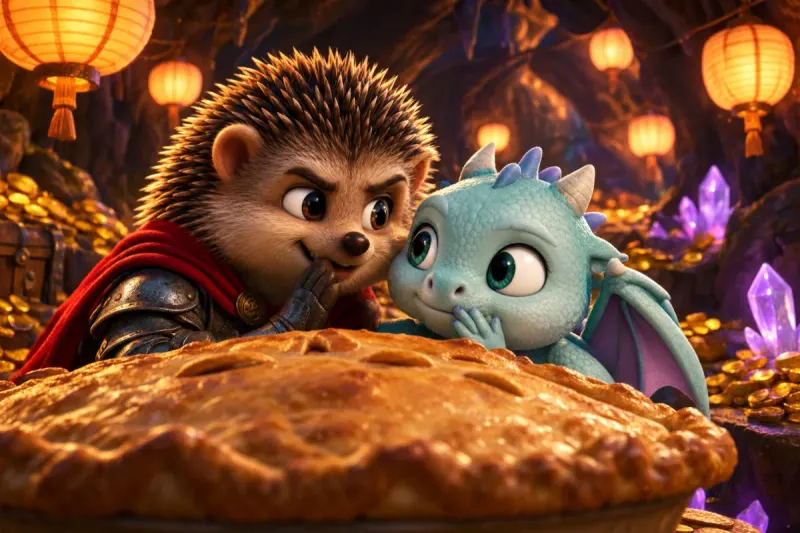
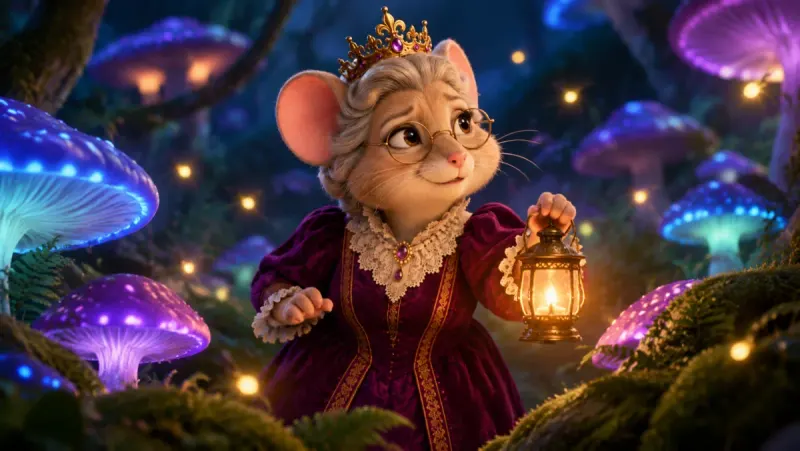
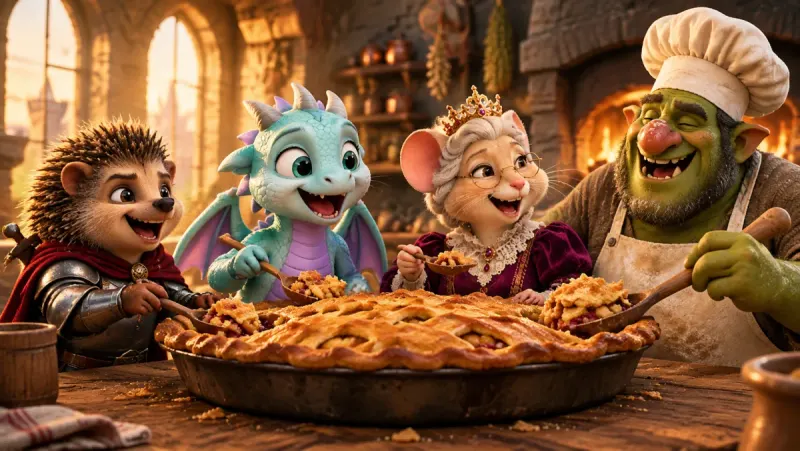
What GPT Image 2.5 is good at
OpenAI released GPT Image 2.5 on 8 September 2026 as ChatGPT Images 2.5, five months after Images 2.0. It went out to ChatGPT, ChatGPT Work and Codex on every tier, and to developers as two API models. Here is what OpenAI says changed, and what each change means when the picture is a frame in a story.
- Words inside the picture
- Since Images 2.0 OpenAI has pitched the GPT Image line at dense layouts, small type and non-Latin scripts such as Japanese, Korean, Chinese and Hindi. In a story that is the shop sign, the letter in close-up or the title card you want people to read.
- Holding a subject from a reference
- OpenAI says 2.5 keeps the subjects of your reference images better than the previous version. That matters in Insaga, where every frame is drawn with the character sheets passed along as references.
- Detail and light
- Sharper detail, more natural lighting and richer textures, according to OpenAI.
- Edits that leave the rest alone
- In ChatGPT the model changes only the part you point at and keeps everything else steady through several rounds of edits. That is conversational editing, and ChatGPT is the right place for it.
- Less waiting
- OpenAI cut the wait for an image by up to half compared with Images 2.0, which adds up quickly when a story has sixty frames.
- Two speeds for developers
- The API offers Flare, the faster default, and Sunburst, which takes longer and aims for more precision on detailed work.
How Insaga uses GPT Image 2.5
In a chat window, keeping a character the same is your job: attach the references again, repeat the description, check every result. In Insaga that job belongs to the pipeline, and GPT Image 2.5 is the model that draws inside it.
Choose the model
Open the studio, choose the Characters mode and pick GPT Image 2.5 in the image-model menu. Nano Banana 2 is selected by default and GPT Image 2.5 sits next to it, on every plan including the free one.
Paste the story
A single scene, a script or a whole book. Insaga splits the text into scenes and works out who appears in each and where it takes place.
Approve the cast and the places
Before any scene is drawn, each character gets a sheet and each location gets a look. Fix a costume or a face here, once, instead of correcting it in forty separate frames.
Draw every frame
GPT Image 2.5 draws each frame from its scene, with the sheets of everyone in it sent along as reference images. If one frame is off, redraw that frame alone; the rest of the story stays as it is.
Animate, voice and cut on Studio
On the Studio plan the frames become video clips of about eight seconds in 16:9. Voices from a library of 6,000+, automatic subtitles, your music and export up to 4K happen in the same project.
The sheets behind every frame
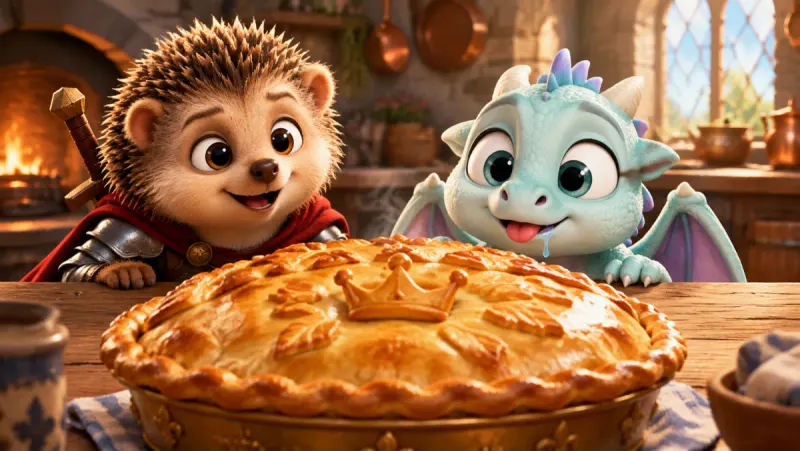
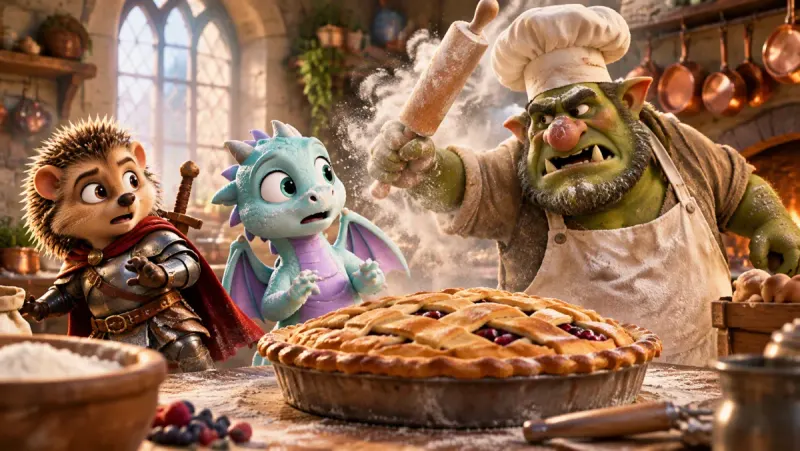
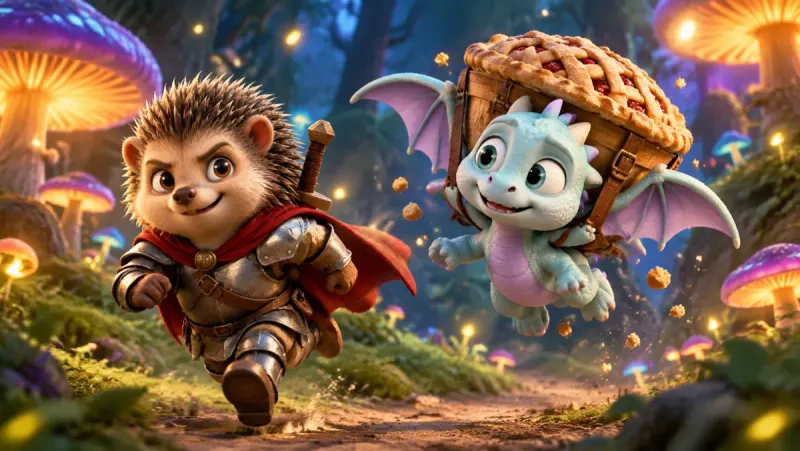
The frames on this page were made in Insaga for a short fairy tale in a 3D look. They are not a GPT Image 2.5 sample reel. What they show is the cast holding from scene to scene, which works the same way whether you draw with GPT Image 2.5 or Nano Banana 2.
Designed once
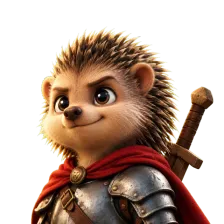 The hedgehog knight
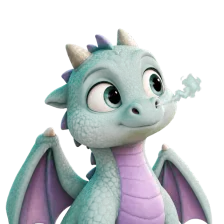 The baby dragon
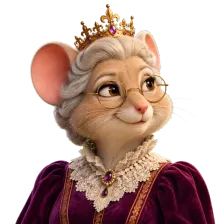 The mouse queen
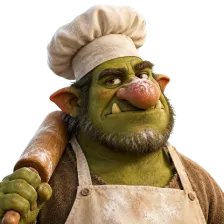 The troll cook
And one location
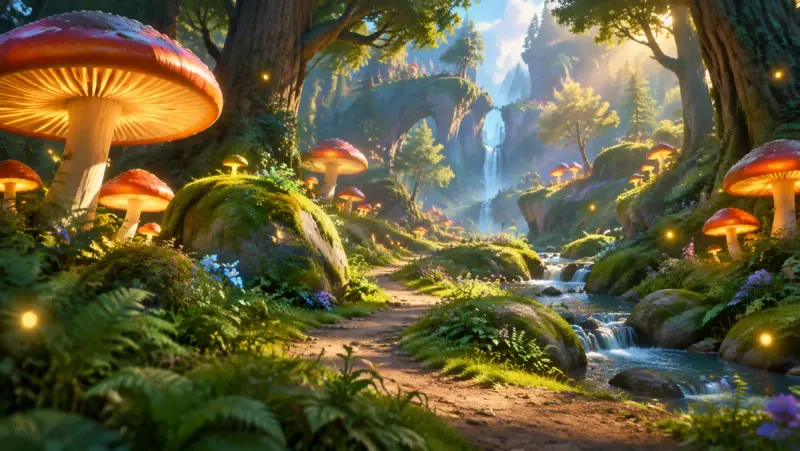
The knight's red cape, the dragon's lilac wings, the queen's round glasses and crown: nobody retyped them for each frame. They live on the sheets, and the sheets go into every frame the model draws.
One character, any of 100+ styles
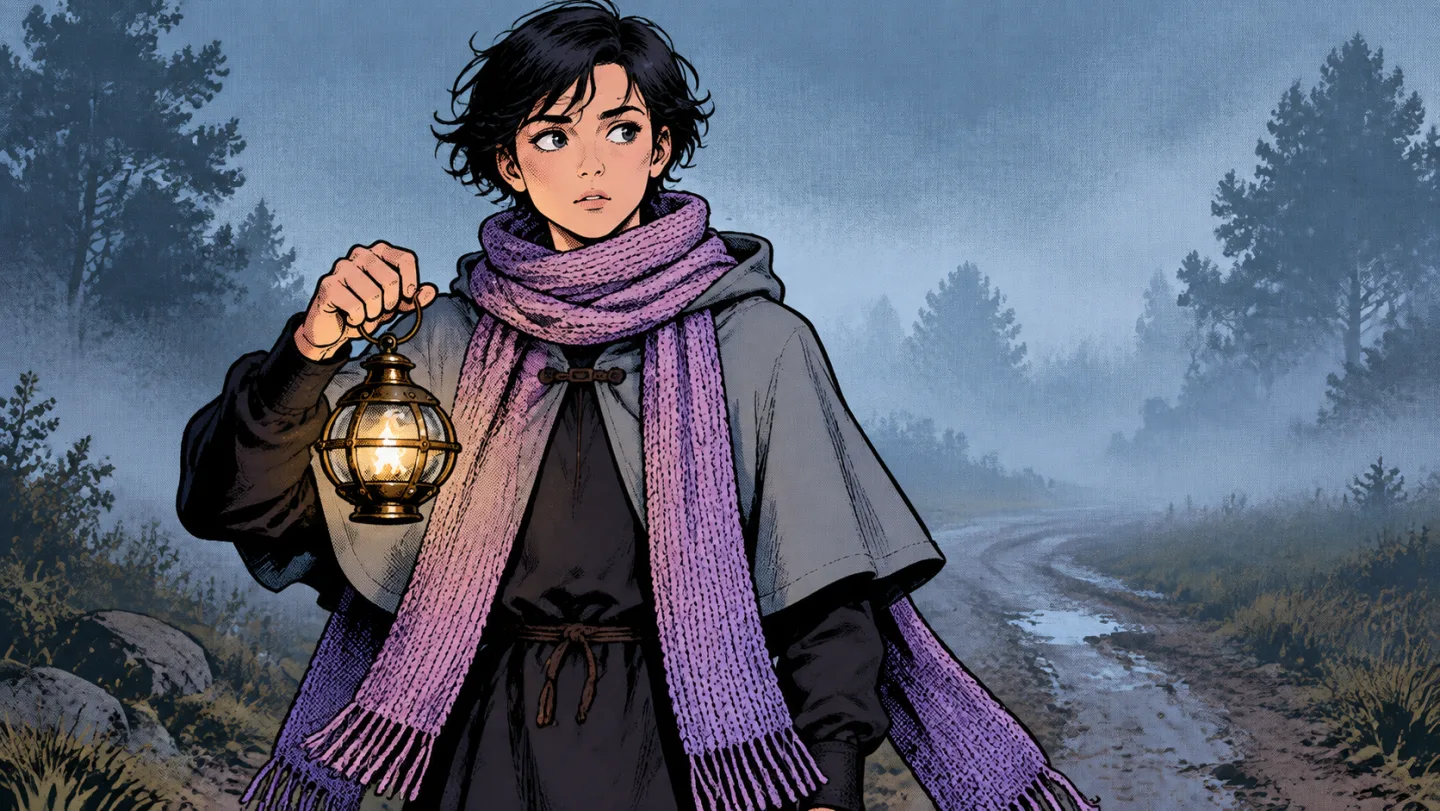
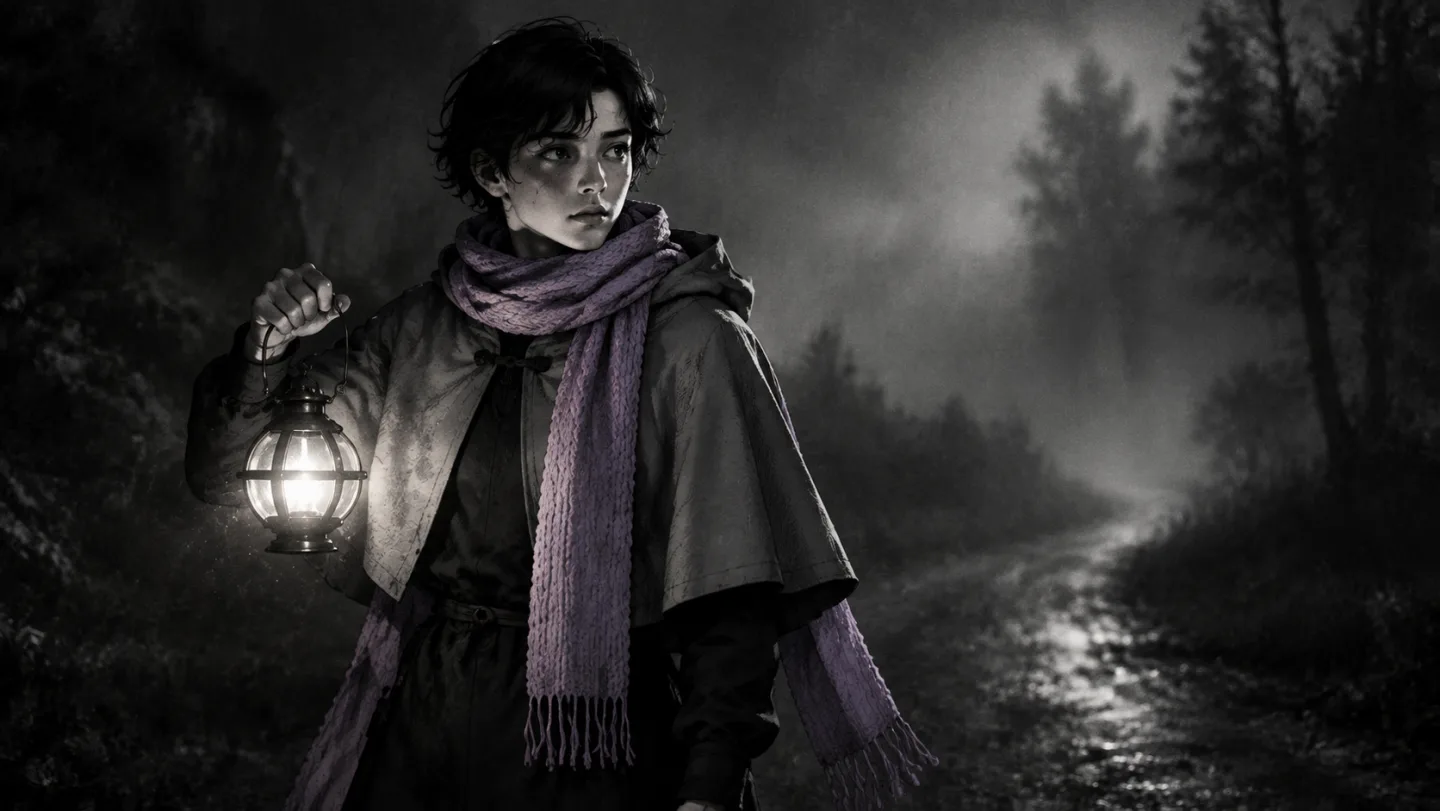
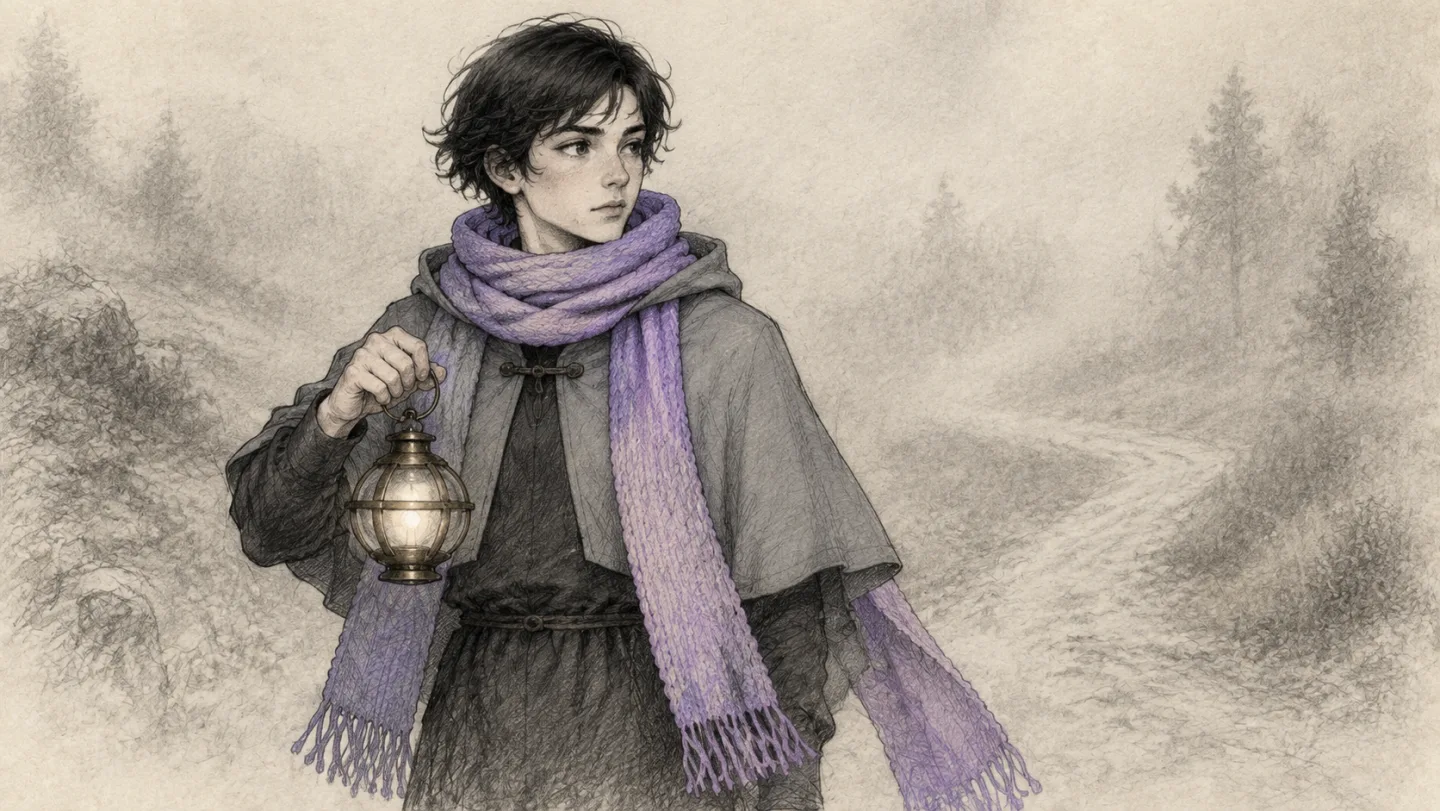
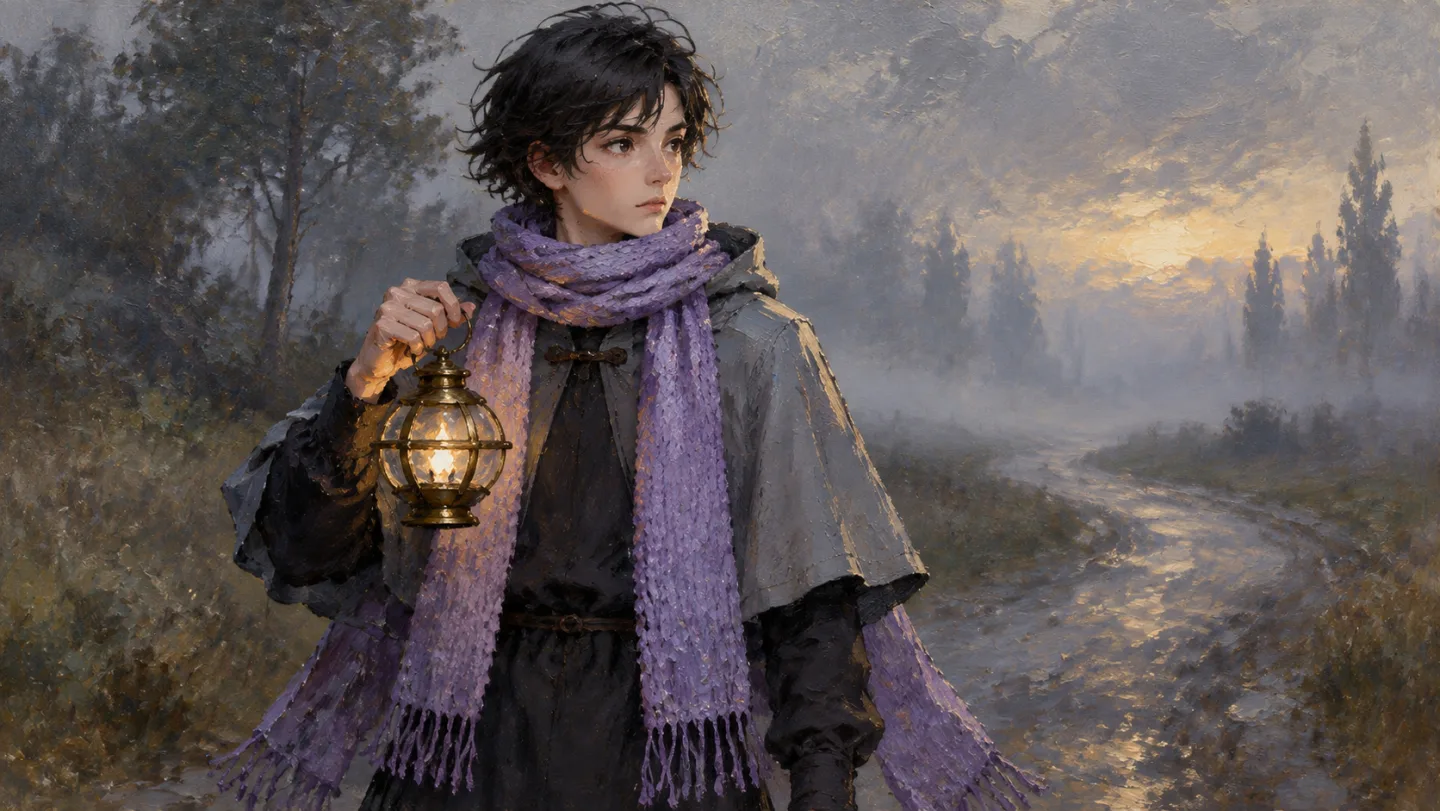
The model draws; the style decides the look. Here is the traveller from another Insaga story in four of the 100+ styles. On the Director and Studio plans you can also build a style of your own from reference images.
Where GPT Image 2.5 earns its place in a story
Stories with writing in them. A detective reads a ransom note, a traveller stops at a signpost, a newspaper headline carries the twist. When the words in the frame matter, GPT Image 2.5 is the model to try first. You still look at the frame, and if a letter slips you redraw just that one.
Frames packed with detail. A crowded market, a cluttered workshop, a table laid for a feast. On Studio Max the Thinking mode spends longer on each frame to keep a busy composition and its text in order.
Thumbnails with a title. The YouTube thumbnail generator, with 79 templates, offers GPT Image 2.5 too: type the title you want on the thumbnail, pick the model and let it draw the lettering into the picture.
Your look, not the model's default. The model works inside the style you chose, so a story in watercolour stays in watercolour and a noir stays noir, from the first frame to the last.
Insaga or OpenAI's own tools: which fits the job
Insaga is the better fit when
- You are making a story, a series or a channel, not a single picture.
- The same characters and places have to appear across dozens of frames.
- The frames need to become video, get voices and subtitles and end up on a timeline.
- You want GPT Image 2.5 without an OpenAI account, an API key or any code.
- You make a lot of images: on Studio and Studio Max, GPT Image 2.5 does not use credits at all.
ChatGPT or the API is the better fit when
- You need one image, such as a poster, a diagram or a meme, and then you are done.
- You want to refine a picture by talking to it: point at a detail, ask for a change, repeat.
- You want OpenAI's own tools, such as Sketch and edits by comment, the day they ship.
- You are building your own product and need the model inside your code: Insaga has no public API, while OpenAI's offers Flare and Sunburst.
- You need square or vertical pictures: Insaga frames are 16:9 or 2.35:1.
ChatGPT, the OpenAI API and Insaga, side by side
| ChatGPT | OpenAI API | Insaga | |
|---|---|---|---|
| Where you work | A chat, one conversation at a time | Your own code | A studio built around your story |
| What you start from | A prompt, a photo or a sketch | A request with a prompt and images | A script, a story or a whole book |
| Keeping a character the same | Attach references and check each result yourself | Send the references with every request yourself | Character sheets go into every frame automatically |
| Versions of the model | GPT Image 2.5 (ChatGPT Images 2.5) | Flare (faster) and Sunburst (more precise) | GPT Image 2.5; the Thinking mode on Studio Max |
| Changing a picture | Edits by comment, over several turns | Edit requests from your code | Redraw a single frame; change a character once, on the sheet |
| How you pay | Included in ChatGPT plans, the free tier too; limits depend on the plan | Per token, as you use it | 100 free credits to start, 1 image = 1 credit; unlimited on Studio and Studio Max |
| After the image | Download it | Your code stores it | Animate it (Studio), voice it, cut it, export up to 4K |
OpenAI details are from its announcement of ChatGPT Images 2.5 on 8 September 2026 and were checked on 27 September 2026. OpenAI sets ChatGPT's image limits and changes them over time.
Free, unlimited and Thinking: what each plan gives you
Free start. A new account gets 100 credits once, with no card. A picture costs one credit whichever model draws it, so that is up to 100 images with GPT Image 2.5, enough to design a cast and draw the first scenes of a story. Animation, voiceover and export come with paid plans.
Unlimited on Studio and Studio Max. On these two plans, generating images with GPT Image 2.5, Nano Banana 2 or Nano Banana Pro does not use credits, and frames can be animated into video without a cap too. It suits channels that publish every week and stories with hundreds of frames.
Thinking on Studio Max. GPT Image 2.5 · Thinking spends longer on each frame and holds a complex scene, its text and its composition more accurately. Everyone can see it in the model menu; it opens on the Studio Max plan.
Commercial use. The Insaga Terms include a licence to use your results commercially, so the frames, thumbnails and videos you make can be used in commercial projects; whether a channel is monetised is up to the platform's own rules.
Questions about GPT Image 2.5 in Insaga
Can I use GPT Image 2.5 for free?
You can start free. A new account gets 100 credits once, with no card, and one image costs one credit with any model, so that is up to 100 images with GPT Image 2.5. After that, images come with a paid plan; on Studio and Studio Max they are unlimited.
Is there an unlimited GPT Image 2.5?
On the Studio and Studio Max plans, yes: generating images with GPT Image 2.5 does not use credits there, and the same goes for Nano Banana 2 and Nano Banana Pro. The other plans are not unlimited, and the free 100 credits are a one-time start.
Is it the same model as in ChatGPT?
It is OpenAI's GPT Image 2.5, which Insaga reaches through its image provider. The settings are Insaga's own: the frame format, the reference sheets sent with each frame and the prompt written from your scene. Results will not match ChatGPT image for image, and ChatGPT-only tools such as Sketch are not part of Insaga.
What is GPT Image 2.5 · Thinking?
A slower mode of the same model in Insaga. It spends longer on each frame and holds a crowded scene, its text and its composition more accurately. It is available on the Studio Max plan.
Which keeps characters better: GPT Image 2.5 or Nano Banana?
Both GPT Image 2.5 and Nano Banana 2 draw a story's frames from the same character sheets, so consistency comes from the pipeline as much as from the model. GPT Image 2.5 is OpenAI's model and a natural first try when a frame carries text; Nano Banana 2, the default, is Google's. Nano Banana Pro is there too, for illustration-style projects such as history, explainers and educational stories: in the Illustration mode each scene is drawn straight from the text, without a recurring cast. For characters, the quickest answer is to draw a few frames of your own story with both and keep the look you prefer.
Do I need an OpenAI account or an API key?
No. You sign in to Insaga and choose the model from a menu. There is no OpenAI account, key or code involved, and billing goes through your Insaga plan.
Can I use the images commercially?
Yes. The Insaga Terms include a licence for commercial use of your results, including frames, thumbnails and finished videos. The Terms page has the details.
Can the frames become a video?
Yes, on the Studio plan. Each frame can be animated into a clip of about eight seconds in 16:9, then voiced, subtitled and cut on the timeline into one video. Animation is unlimited on Studio.
Keep exploring
Try GPT Image 2.5 on your own story
Paste a scene, pick the model and meet your cast. The first 100 credits are free, and you do not need a card.
Works in the browser. No install.
Insaga is not affiliated with, endorsed by or sponsored by OpenAI or Google. ChatGPT and OpenAI are trademarks of OpenAI; GPT Image and Nano Banana are named here only to say which models are available in Insaga. Facts about GPT Image 2.5 come from OpenAI's public announcements and were checked on 27 September 2026. The frames on this page were made in Insaga.